2.1 Account Setup & Login
Setting up your ProposalGPT account is quick and straightforward. Whether you're a first-time user or returning to manage active RFPs, this guide walks you through the steps to register, log in, and access your dashboard.
1. Accessing the Platform
Navigate to the ProposalGPT landing page in your browser.
Click on the “Sign In” button located in the top-right corner of the screen.
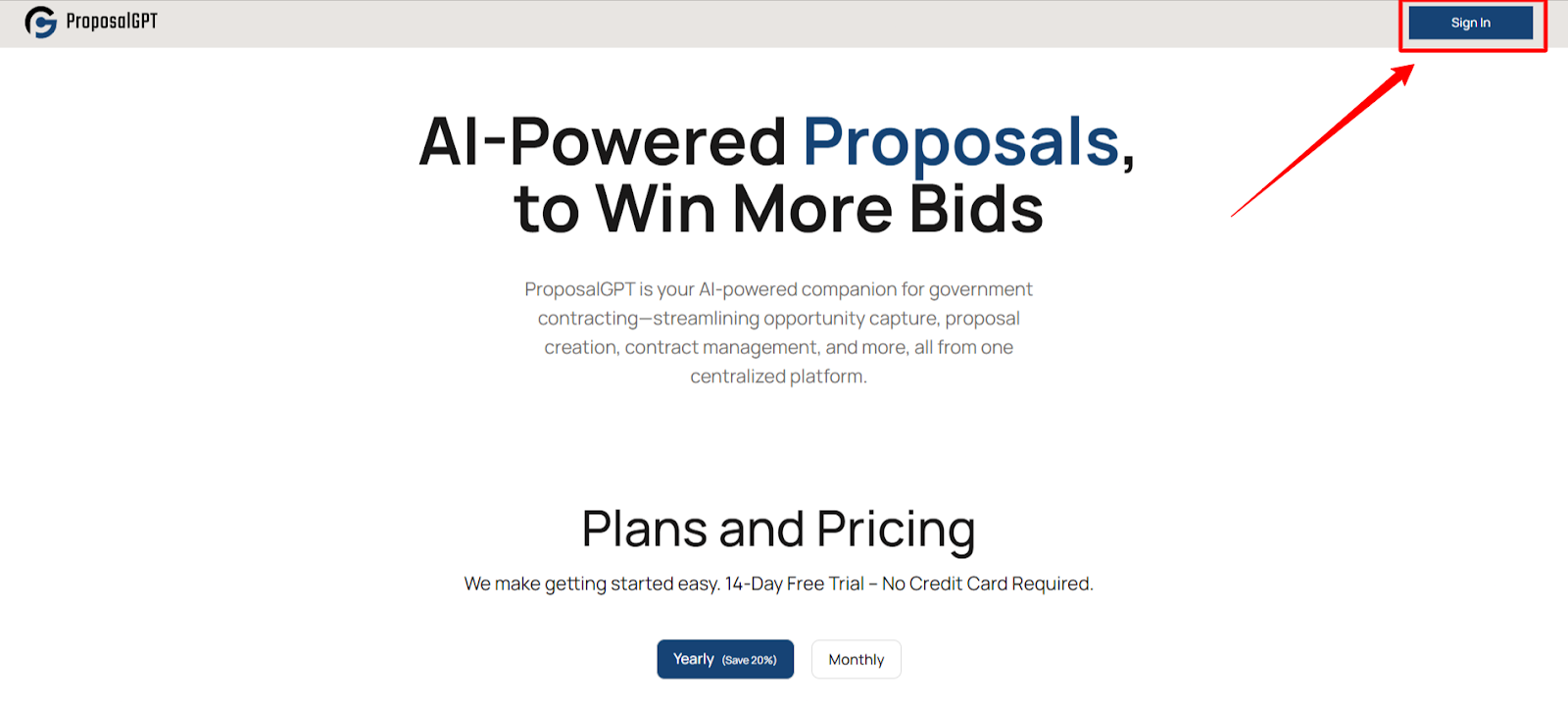
You will be redirected to the Authentication Page, which offers options for both new user registration and returning user login.
2. Creating a New Account
If you're a first-time user, follow these steps to register:
Sign Up Process
Click on the “Don’t have an account? Register for free!” link.
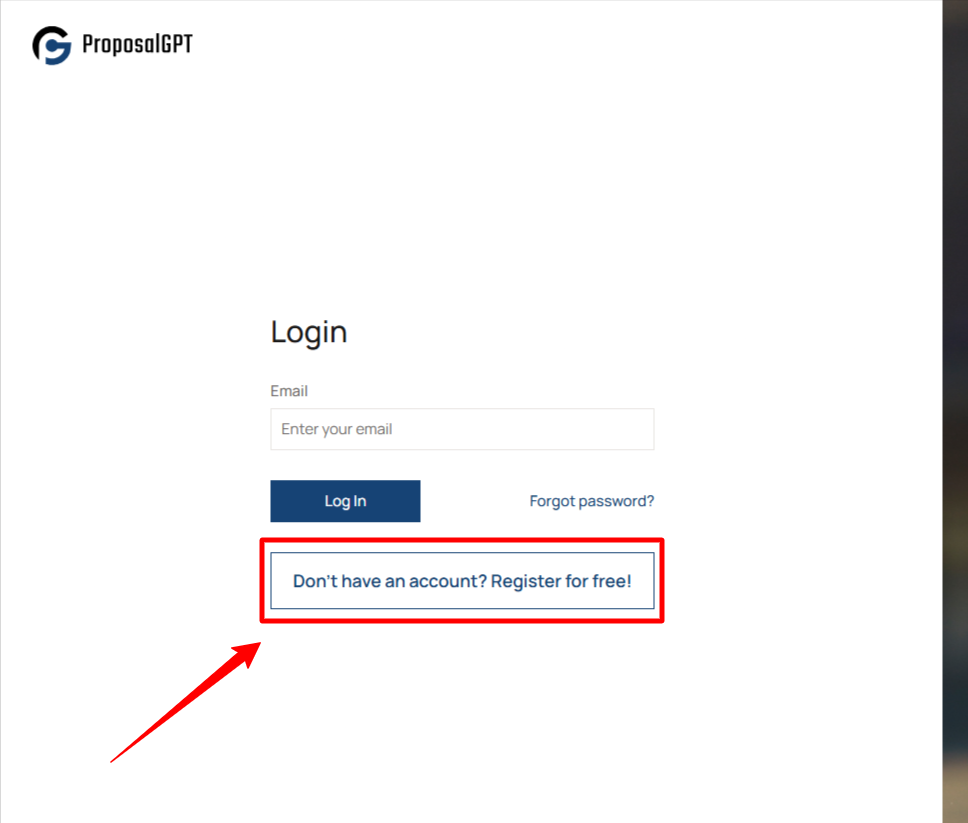
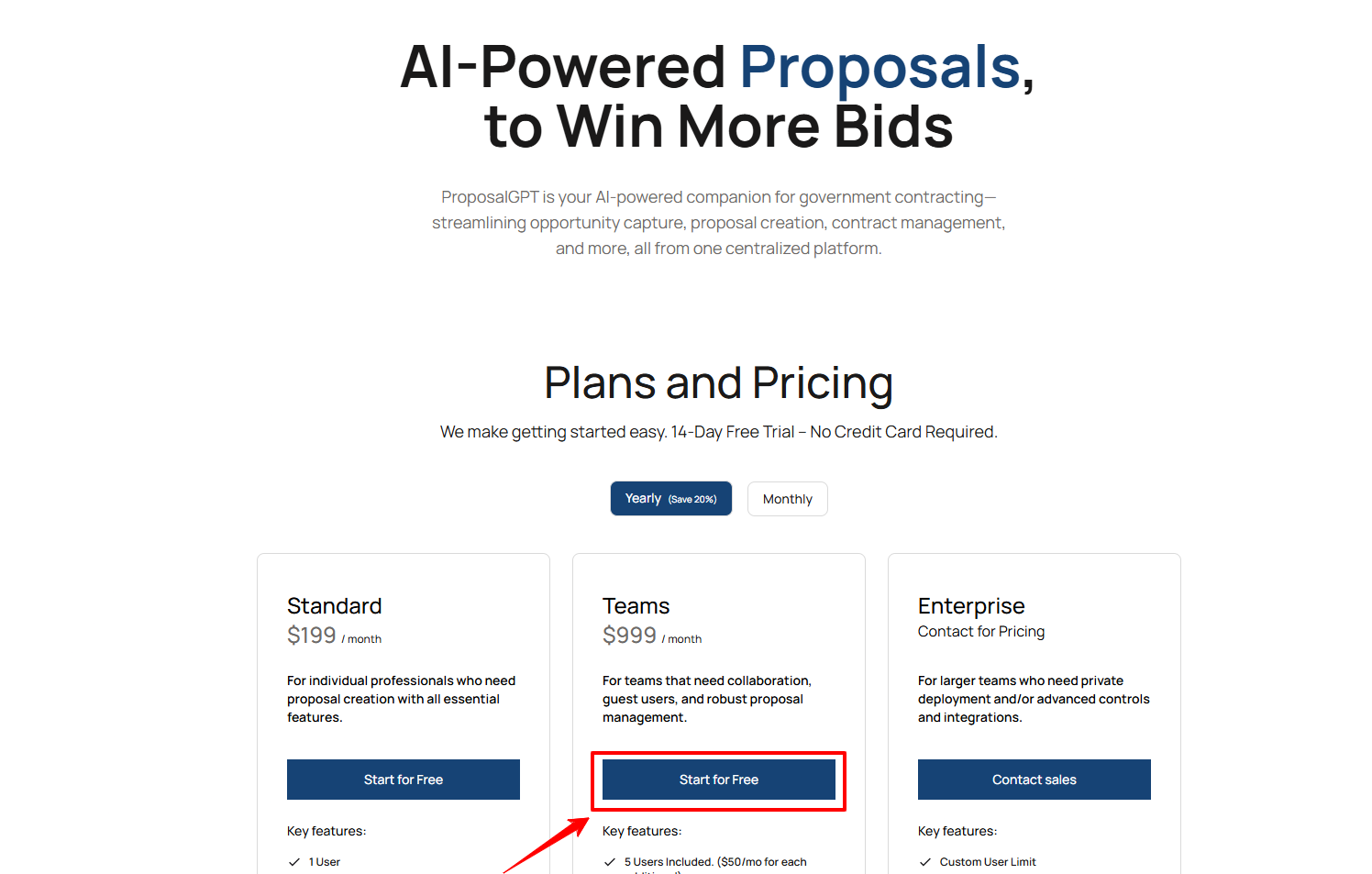
Now, select the Subscription plan you want to subscribe and click on “Start for free” button.
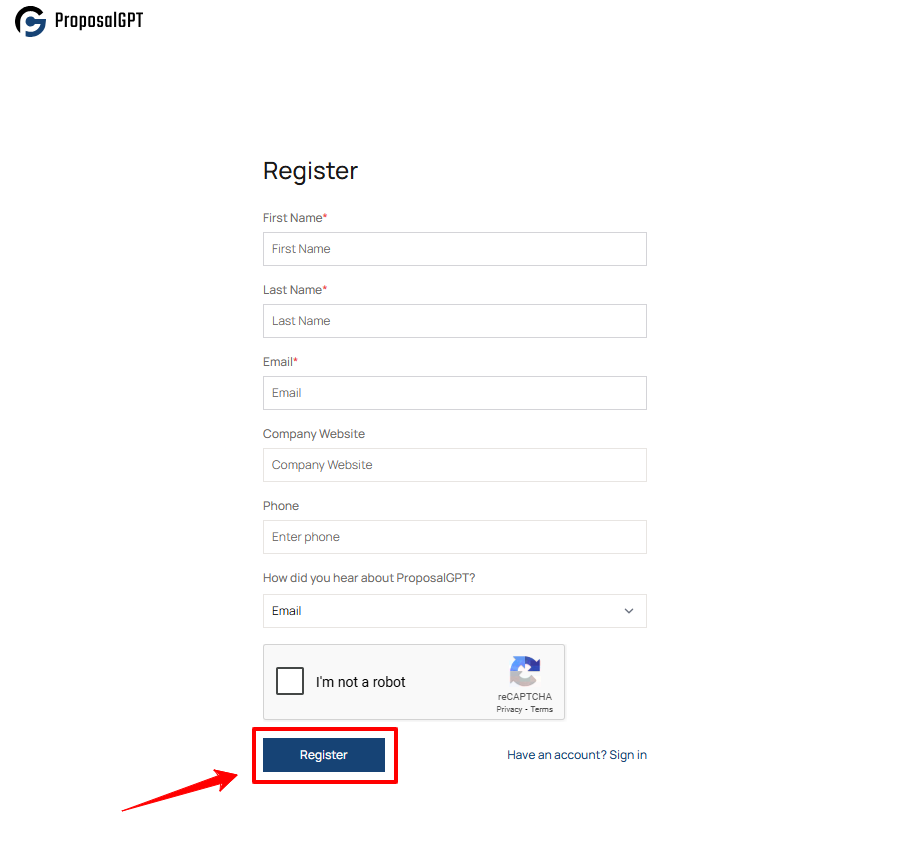
You’ll be taken to the registration form. Fill out the following mandatory and optional fields:
First Name (required)
Last Name (required)
Email Address (required)
Company Website (required)
Phone Number (required)
How did you hear about ProposalGPT? (required)
Captcha Verification
Ensure all required fields are completed correctly. The system may prompt you if any information is missing or incorrectly formatted.
Once all fields are filled in, click the “Sign Up” button.
You will then be redirected to your Home Dashboard, where you can begin uploading RFPs, configuring your workspace, or exploring the AI features of ProposalGPT.
3. Logging Into an Existing Account
Returning users can log in directly using their registered credentials:
Login Process
On the same authentication page, under the Login section, enter your:
Email Address
Password
Click the “Login” button to proceed. Upon successful authentication, you will be redirected to your Home Dashboard.
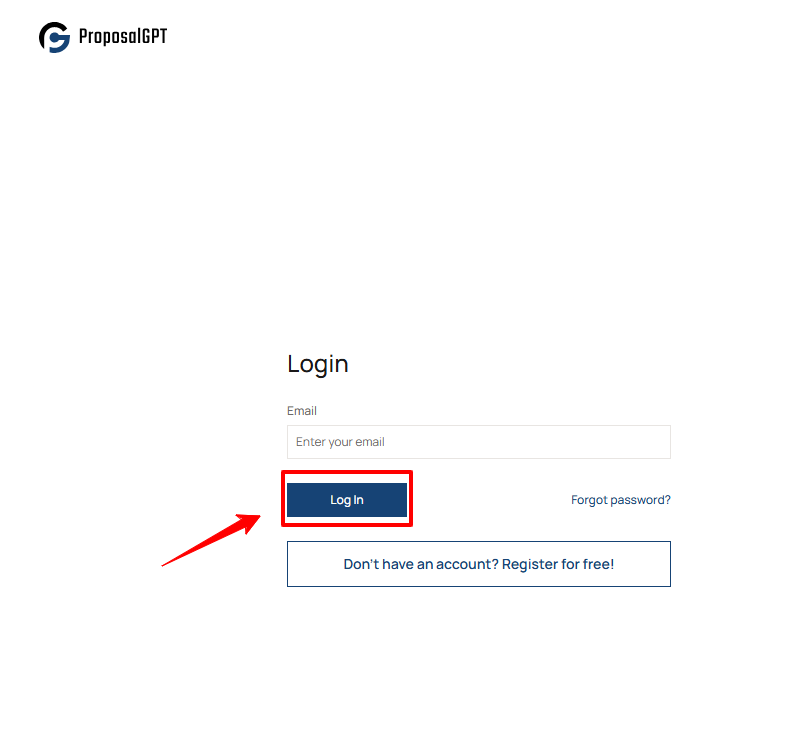
Also, you can take the following actions:
If you have forgotten your password, click on the “Forgot password?” link to initiate the recovery process.
If you don’t have an account, click on “Don’t have an account? Register for free!” to create one.
Next Steps After Login
After login or sign-up:
You will land on the ProposalGPT Home Dashboard
From here, you can start uploading RFPs, view recent projects, or navigate to your workspace settings
If you’re part of a team, any shared RFPs or assignments will also be visible in your dashboard view
Was this article helpful?
That’s Great!
Thank you for your feedback
Sorry! We couldn't be helpful
Thank you for your feedback
Feedback sent
We appreciate your effort and will try to fix the article