1. Why templates matter
Company templates let every proposal share the same polished look—logo, colors, cover page, styles—while ProposalGPT automatically fills in the content with shortcodes (place-holders) pulled from your workspace. Keeping the required blocks ensures ProposalGPT can still auto-build a compliant proposal.
2. Before you start
| Requirement | Why it matters |
|---|---|
File type: .docx | Only Word documents are accepted and validated. |
| Uses Word “Heading 1/2/3…” styles | Lets ProposalGPT create numbered sections & the auto-TOC. |
| Internet Explorer–style merged fields are not supported | Use the built-in shortcodes instead. |
3. Download the sample template
Open Templates ➞ Company Templates in the left-hand sidebar.
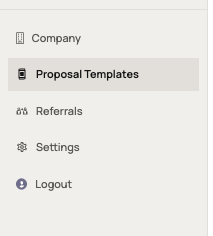
Click Download Sample Template.
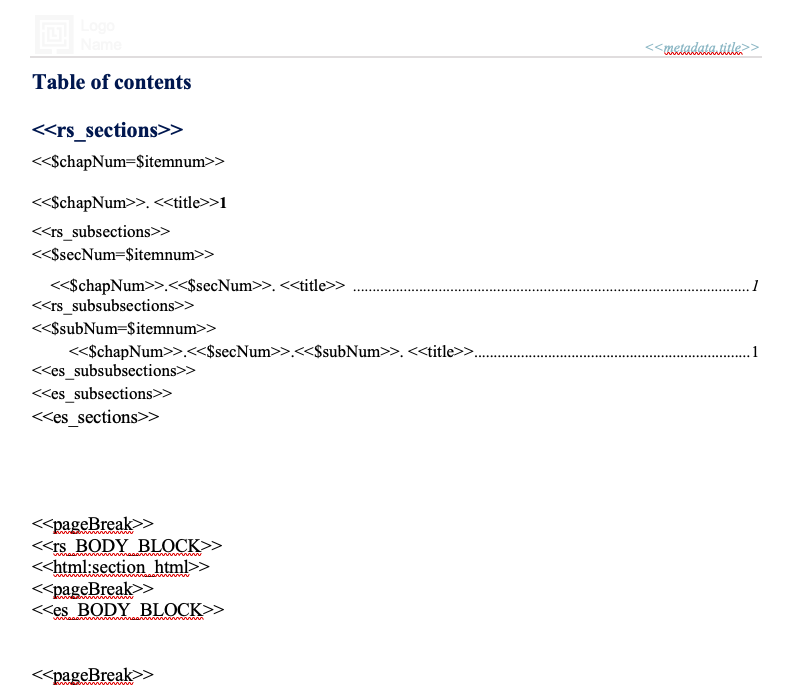
You’ll receiveProposalGPT Template.docx—a working file that already carries every required shortcode and section.

4. Customize the template
| Area | What to change | Keep as-is |
|---|---|---|
| Cover page | Replace the stock logo & background image. Add your tagline or certification badges. | Every <<metadata.*>> shortcode (e.g., <<metadata.company_name>>)—these populate automatically. |
| Branding | Tweak fonts, theme colors and paragraph spacing in Word ➞ Styles. | Style names—rename the look, not the style itself (e.g., keep “Heading 1”). |
| Table of contents | Update its visual style if you wish. | Leave the TOC field and <<rs_sections>> shortcode in place so it refreshes. |
| Past Performance block | Rearrange layout, add client logos. | Preserve the entire <<rs_PAST_PERFORMANCE_BLOCK>> … <<es_PAST_PERFORMANCE_BLOCK>> section delimiters. |
| Resumes block | Adjust column widths, fonts, borders. | Keep all resume-related shortcodes (e.g., <<rs_RESUMES_BLOCK>>) intact. |
| Optional content | Delete any sample paragraphs you don’t need. | Do not remove unused shortcodes unless you are certain ProposalGPT will never need that field. |
Tip: If you must hide a shortcode, wrap it in a 1-pt-tall paragraph and set the text font to white instead of deleting it. That way the placeholder stays available without being visible in print.
5. Style tweaks in one place
Open Home ➞ Styles Pane (or Design ➞ Styles in newer Word versions).
Right-click each style (Heading 1, Normal, Table Text…) and choose Modify to set:
Font family & size
Color palette
Paragraph spacing & indentation
Save the file—those style definitions travel with the template.
6. Upload & validate
Return to Templates ➞ Company Templates.
Click Upload Template, choose your
.docx, and wait a few seconds.ProposalGPT checks that:
All required blocks still exist.
Headings are mapped to Word styles.
The file is under 20 MB.
If validation passes, you’ll see a green success banner. If something is missing, an error list will point to the exact shortcode or style to fix.
7. Set your default & manage versions
You may store up to 5 company templates.
Hover over any template row and click Set as Main to make it the default for new proposals.
When creating a proposal, use the Template dropdown to pick a different one on the fly.
8. Troubleshooting quick-hits
| Error message | Likely cause | Fix |
|---|---|---|
“Missing required block: rs_PAST_PERFORMANCE_BLOCK” | You deleted the Past Performance section delimiters. | Copy them back from the sample template. |
| “Unsupported file type” | Uploaded a PDF or .dotx. | Re-save as .docx. |
| “Heading 2 style not found” | Renamed built-in Heading styles. | Re-apply Word’s native Heading styles or map your custom style to them. |
9. FAQ
Can I rename shortcodes?
No. ProposalGPT looks for the exact tokens shown in the sample doc.Can I hide the TOC?
Yes—set its font to white or place it in a hidden Word bookmark.Is there a size limit?
20 MB per template. Large image assets are the usual culprit.What happens if I upload two templates with identical names?
The newest upload appears at the top, but giving each template a clear name (e.g., “RFP Brand 2025”) makes it easier to locate.
Was this article helpful?
That’s Great!
Thank you for your feedback
Sorry! We couldn't be helpful
Thank you for your feedback
Feedback sent
We appreciate your effort and will try to fix the article